 VectoDesk
What you'll need
- A current desktop browser over HTTPS or
localhost(Chrome/Edge 91+, Firefox 89+, Safari 16.4+). - An
.svgfile on disk. The test file used a rectangle, a circle and a filled path. - The editor open at /app/. Wait until the loading screen disappears — the first visit downloads about 97 MB of engine code.
Steps
- Drag the SVG onto the canvas. Drop the file anywhere over the editor workspace. The application opens it as a new document; no import dialog is shown.
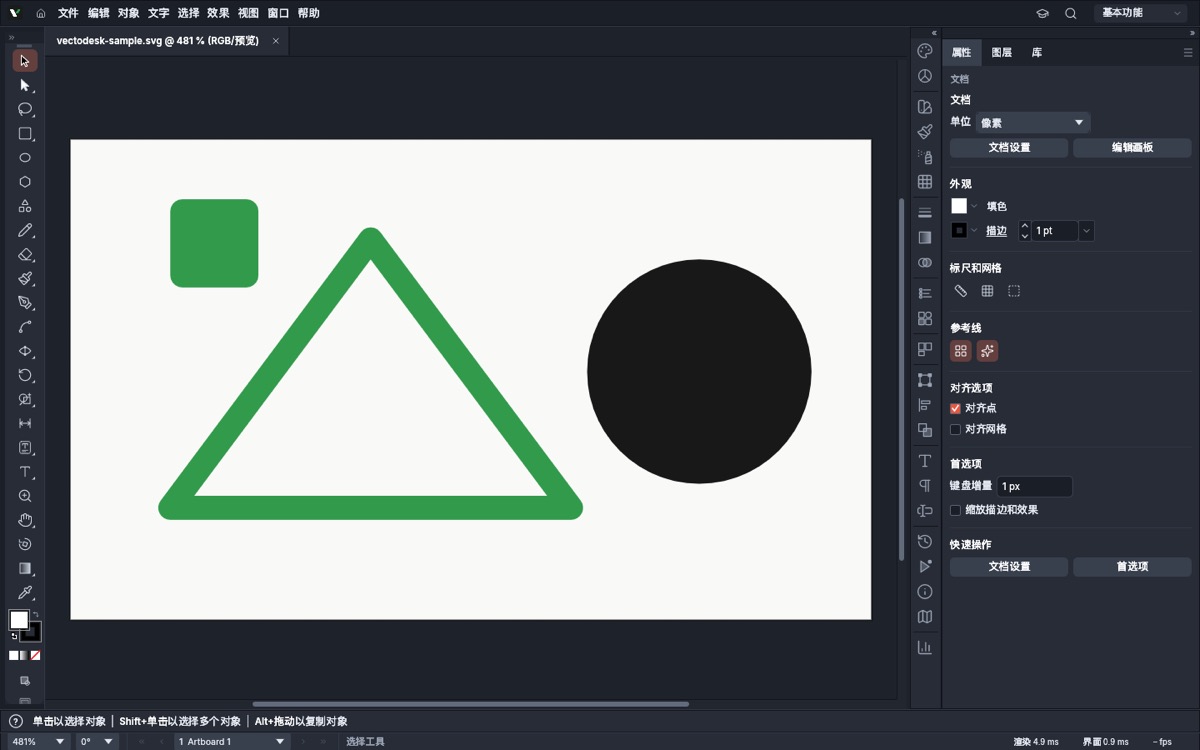
- Confirm the import. A document tab appears with the file name and a zoom percentage, and the artboard shows each SVG element in its own colour. This confirms the geometry arrived as vectors rather than a flattened bitmap.
- Select an object. Click one of the shapes. The right-hand Properties panel changes from document settings to the object's transform, appearance and alignment controls.
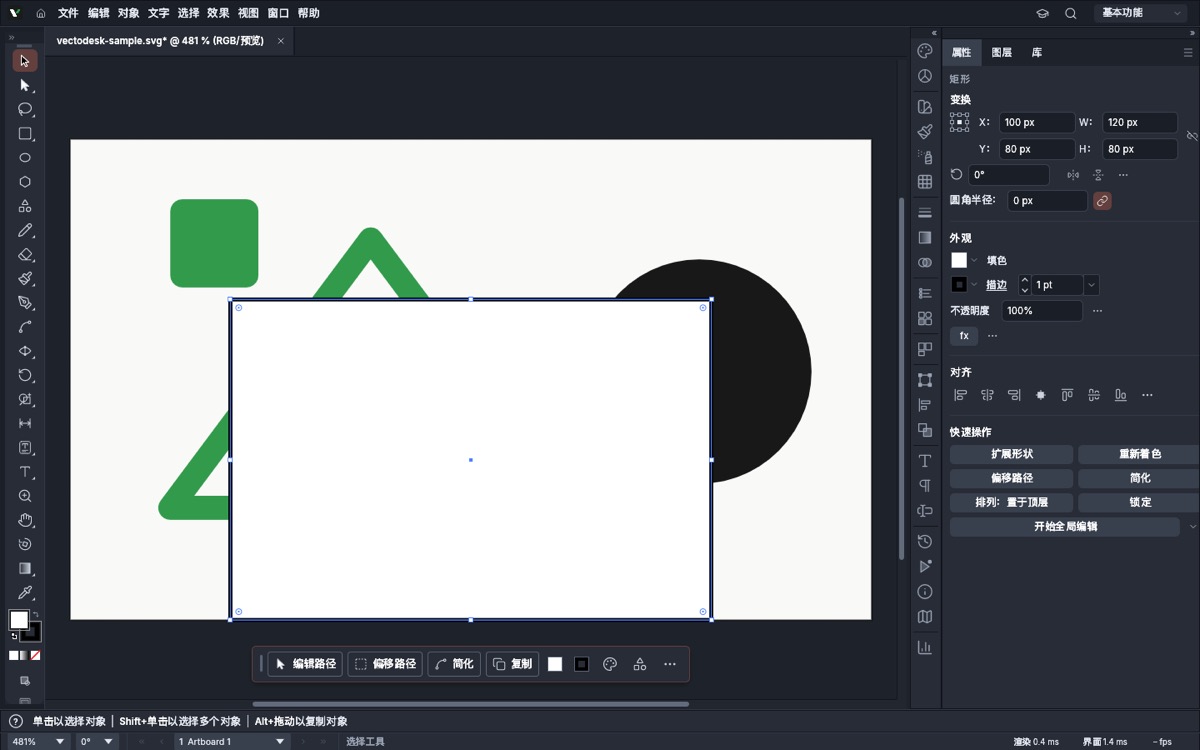
- Draw a new shape. Pick the rectangle tool from the left toolbar, then drag on the artboard. The new object appears with square selection handles, and the Properties panel shows live X, Y, W and H values.
- Adjust it numerically. Edit the transform fields or change fill and stroke in the Appearance section. The artboard updates immediately and the edit is undoable.
- Save the result. Use File › Save for the layered document or the PNG export guide for a raster asset. There is no automatic cloud save.
What we verified
- Drag-and-drop import opened the SVG and rendered all three test elements correctly.
- The document tab reported the file name and zoom level after import.
- The rectangle tool created a selectable object with numeric X, Y, W and H fields in the Properties panel.
- The browser console reported no errors during the whole sequence.
About File › Open and the welcome screen's Open button: both call the same application import pipeline, but they rely on the operating system's file picker. Our automated browser could not drive that native picker, so this guide uses the drag-and-drop route, which we could verify end to end. In a normal desktop browser the picker is available as usual (Ctrl/⌘ + O).
Next
Once the artwork looks right, follow Export a PNG to produce a raster file with explicit size and transparency settings.
Follow along in the editor
Open the full-screen workspace and drop your SVG onto the canvas.
Open the editor